Sorting Data
Data items can be sorted by adding SortDescription objects to the SortDescriptions property of the DataGridCollectionViewSource or DataGridCollectionView to which a grid is bound, or directly through the Items property, and specifying the field name of the column by whose values to sort as well as the direction in which those values are to be sorted (see Example 1).
A column's SortDirection property can be consulted to determine the direction in which its values are sorted, while the SortIndex property indicates the index of the column in the SortDescriptions collection.
To be notified when the SortDescriptions collection is changed, the CollectionChanged event of the collection's INotifyCollectionChanged interface implementation can be handled (see Example 4).
The name of the property in the data item and the value of the FieldName property must be identical in order for sorting to work.
Custom Sorting
In addition to the default type-based sorting, custom sorting can also be applied by providing an IComparer to the SortComparer property of one or more item properties defined in the DataGridCollectionView or DataGridCollectionViewSource to which a grid is bound (see Example 5). The comparer will be used whenever the values of the item property's corresponding column are sorted (e.g., clicking on the column header).
Sorting at Runtime
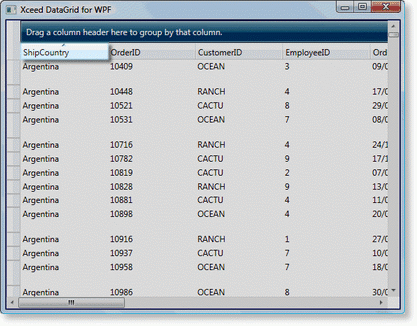
When a DataGridControl is created, by default, it contains a ColumnManagerRow in its fixed headers section that contains a ColumnManagerCell for each column in a grid. The content of one or more columns can be sorted by clicking in the corresponding ColumnManagerCell (see Figure 1).
By default, clicking once will sort the column's values in an ascending direction, the second click will sort them in a descending direction, while the third click will remove any sorting that has been applied to the column's values. To sort the values of multiple columns, hold the SHIFT key while clicking on a ColumnManagerCell. The sort-direction cycle can be modified by providing a column with a new SortDirectionCycle collection or by handling the grid's SortDirectionChanging event.
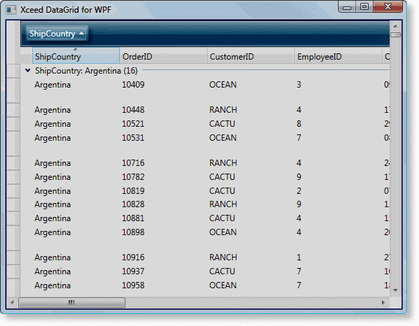
Any GroupByItems contained in a GroupByControl can also be used to sort the content of the columns which they represent (see Figure 2).
 |  |
|---|---|
| Figure 1: ColumnManagerCell | Figure 2: GroupByItem |
The AllowSort property, which can be set on a column-manager row or group-by control, indicates whether the end user can sort columns. To prevent columns from being reordered (i.e., change their visible positions) when column-manager cells are dragged to another location, a column-manager row's AllowColumnReorder property can be set to false (see Example 2).
These properties only affect end-user interaction and do not prevent columns from being sorted or reordered programmatically.
Examples All examples in this topic assume that the grid is bound to the Orders table of the Northwind database, unless stated otherwise.
Example 1: Sorting data items
The following example demonstrates how to sort the data items in an ascending direction according to the values of the ShipCountry column.
- XAML
- C#
- VB.NET
<Grid xmlns:scm="clr-namespace:System.ComponentModel;assembly=WindowsBase"
      xmlns:xcdg="http://schemas.xceed.com/wpf/xaml/datagrid">
  <Grid.Resources>
    <xcdg:DataGridCollectionViewSource x:Key="cvs_orders"
                                    Source="{Binding Source={x:Static Application.Current},
                                                      Path=Orders}">
    <xcdg:DataGridCollectionViewSource.SortDescriptions>
      <scm:SortDescription PropertyName="ShipCountry" Direction="Ascending"/>
    </xcdg:DataGridCollectionViewSource.SortDescriptions>
    </xcdg:DataGridCollectionViewSource>
  </Grid.Resources>
  <xcdg:DataGridControl x:Name="OrdersGrid"
                        ItemsSource="{Binding Source={StaticResource cvs_orders}}">
    <xcdg:DataGridControl.Columns>
      <xcdg:Column FieldName="ShipCountry" VisiblePosition="0"/>
    </xcdg:DataGridControl.Columns>
  </xcdg:DataGridControl>
</Grid>
  DataGridCollectionView collectionView = new DataGridCollectionView( Orders );
  collectionView.SortDescriptions.Add( new SortDescription( "ShipCountry", ListSortDirection.Ascending ) );
  dataGridControl.ItemsSource = collectionView;
  dataGridControl.Columns[ "ShipCountry" ].VisiblePosition = 0;
  Dim collectionView As New DataGridCollectionView( Orders )
  collectionView.SortDescriptions.Add( New SortDescription( "ShipCountry", ListSortDirection.Ascending ) )
  dataGridControl.ItemsSource = collectionView
  dataGridControl.Columns( "ShipCountry" ).VisiblePosition = 0
Example 2: Preventing sorting and grouping
The following example demonstrates how to bind a grid to the Orders table and prevent columns from being sorted and reordered and groups from being created or removed. By default, the ShipCountry and ShipCity columns will be sorted, grouped, and fixed.
- XAML
  <Grid xmlns:xcdg="http://schemas.xceed.com/wpf/xaml/datagrid"
        xmlns:d="clr-namespace:System.Windows.Data;assembly=PresentationFramework"
        xmlns:scm="clr-namespace:System.ComponentModel;assembly=WindowsBase">
    <Grid.Resources>
      <xcdg:DataGridCollectionViewSource x:Key="cvs_orders"
                                      Source="{Binding Source={x:Static Application.Current},
                                                        Path=Orders}">
        <xcdg:DataGridCollectionViewSource.SortDescriptions>
          <scm:SortDescription PropertyName="ShipCountry" Direction="Ascending"/>
          <scm:SortDescription PropertyName="ShipCity" Direction="Ascending"/>
        </xcdg:DataGridCollectionViewSource.SortDescriptions>
        <xcdg:DataGridCollectionViewSource.GroupDescriptions>
          <xcdg:DataGridGroupDescription PropertyName="ShipCountry"/>
          <xcdg:DataGridGroupDescription PropertyName="ShipCity"/>
        </xcdg:DataGridCollectionViewSource.GroupDescriptions>
      </xcdg:DataGridCollectionViewSource>
    </Grid.Resources>
    <xcdg:DataGridControl x:Name="OrdersGrid"
                          ItemsSource="{Binding Source={StaticResource cvs_orders}}">
      <xcdg:DataGridControl.Columns>
        <xcdg:Column FieldName="ShipCountry" VisiblePosition="0"/>
        <xcdg:Column FieldName="ShipCity" VisiblePosition="1"/>
      </xcdg:DataGridControl.Columns>
      <xcdg:DataGridControl.View>
        <xcdg:TableView FixedColumnCount="2" UseDefaultHeadersFooters="False">
          <xcdg:TableView.FixedHeaders>
            <DataTemplate>
              <xcdg:GroupByControl AllowSort="False" AllowGroupingModification="False"/>
            </DataTemplate>
            <DataTemplate>
              <xcdg:ColumnManagerRow AllowSort="False" AllowColumnReorder="False"/>
            </DataTemplate>
          </xcdg:TableView.FixedHeaders>
        </xcdg:TableView>
      </xcdg:DataGridControl.View>
    </xcdg:DataGridControl>
  </Grid>
Example 3: Custom group sorting
This example demonstrates how to create a custom group description by deriving from the DataGridGroupDescription class and overriding the GroupNameFromItem method. The custom group description will group items according to the first letter in the value received as a parameter. The example results in the group being present at initial loading; also, when removing and re-adding the group, the custom group description is not triggered. See below for an alternative approach to avoid this.
The implementation for the custom sort comparer assigned to the group description's SortComparer property is provided below.
- C#
- VB.NET
  using System;
  using System.Collections.Generic;
  using System.Text;
  using Xceed.Wpf.DataGrid;
  using System.Collections;
  namespace Xceed.Wpf.Documentation
  {
    public class AlphabeticalGroupDescription : DataGridGroupDescription
    {
      public AlphabeticalGroupDescription()
        : base()
      {
      }
      public AlphabeticalGroupDescription( string propertyName )
        : base( propertyName )
      {
      }

      public override object GroupNameFromItem( object item, int level,
                                                System.Globalization.CultureInfo culture )
      {
        object value = base.GroupNameFromItem( item, level, culture );
        try
        {
          string content = Convert.ToString( value );
          value = content.ToUpper().Substring( 0, 1 );
        }
        catch( InvalidCastException )
        {
        }
        return value;
      }
    }
  }
  Imports System
  Imports System.Collections.Generic
  Imports System.Text
  Imports Xceed.Wpf.DataGrid
  Imports System.Collections
  Imports System.Globalization;
  Namespace Xceed.Wpf.Documentation
    Public Class AlphabeticalGroupDescription
          Inherits DataGridGroupDescription
      Public Sub New()
        MyBase.New()
      End Sub
      Public Sub New(ByVal propertyName As String)
      MyBase.New(propertyName)
      End Sub
      Public Overrides Function GroupNameFromItem(ByVal item As Object, _
                                                  ByVal level As Integer, _
                                                  ByVal culture As CultureInfo) As Object
        Dim value As Object = MyBase.GroupNameFromItem(item, level, culture)
        Try
          Dim content As String = Convert.ToString(value)
          value = content.ToUpper().Substring(0, 1)
        Catch e1 As InvalidCastException
        End Try
        Return value
      End Function
    End Class
  End Namespace
The following code demonstrates how to use the custom group description by adding it to the DataGridCollectionViewSource's GroupDescriptions property.
- XAML
- C#
- VB.NET
<Grid xmlns:xcdg="http://schemas.xceed.com/wpf/xaml/datagrid"
    xmlns:local="clr-namespace:Xceed.Wpf.Documentation">
  <Grid.Resources>
    <local:ConsonantVowelComparer x:Key="consonantVowelComparer"/>
    <xcdg:DataGridCollectionViewSource x:Key="cvs_orders"
                                      Source="{Binding
                                                Source={x:Static Application.Current},
                                                Path=Orders}">
    <xcdg:DataGridCollectionViewSource.GroupDescriptions>
      <local:AlphabeticalGroupDescription PropertyName="ShipCountry"
                                SortComparer="{StaticResource consonantVowelComparer}"/>
    </xcdg:DataGridCollectionViewSource.GroupDescriptions>
    </xcdg:DataGridCollectionViewSource>
  </Grid.Resources>
  <xcdg:DataGridControl x:Name="OrdersGrid"
                        ItemsSource="{Binding Source={StaticResource cvs_orders}}"/>
</Grid>
  DataGridCollectionView collectionView = new DataGridCollectionView( Orders );
  AlphabeticalGroupDescription groupDescription = new AlphabeticalGroupDescription( "ShipCountry" );
  groupDescription.SortComparer = new ConsonantVowelComparer();
  collectionView.GroupDescriptions.Add( groupDescription );
  dataGridControl.ItemsSource = collectionView;
  Dim collectionView As New DataGridCollectionView( Orders )
  Dim groupDescription As New AlphabeticalGroupDescription( "ShipCountry" )
  groupDescription.SortComparer = New ConsonantVowelComparer()
  collectionView.GroupDescriptions.Add( groupDescription )
  dataGridControl.ItemsSource = collectionView
The following code provides the implementation for the custom sort comparer that is used to sort, by vowels then consonants, the group descriptions create above.
- C#
- VB.NET
  using System;
  using System.Collections.Generic;
  using System.Text;
  using System.Collections;
  namespace Xceed.Wpf.Documentation
  {
    public class ConsonantVowelComparer : IComparer
    {
      public ConsonantVowelComparer()
      {
      }
      public int Compare( object x, object y )
      {
        if( ( x is string ) && ( y is string ) )
        {
          string xString = x.ToString().ToLowerInvariant();
          string yString = y.ToString().ToLowerInvariant();
          bool isXVowel = m_vowels.Contains( xString );
          bool isYVowel = m_vowels.Contains( yString );
          if( isXVowel ^ isYVowel )
            return isXVowel ? -1 : 1;
          return String.Compare( xString, yString );
        }
        throw new ArgumentException();
      }
      private const string m_vowels = "aeiouy";
    }
  }
  Imports System
  Imports System.Collections.Generic
  Imports System.Text
  Imports System.Collections
  Namespace Xceed.Wpf.Documentation
    Public Class ConsonantVowelComparer
      Implements IComparer
      Public Sub New()
      End Sub

      Public Function Compare(ByVal x As Object, _
                              ByVal y As Object) As Integer Implements IComparer.Compare
        If (TypeOf x Is String) AndAlso (TypeOf y Is String) Then
          Dim xString As String = x.ToString().ToLowerInvariant()
          Dim yString As String = y.ToString().ToLowerInvariant()
          Dim isXVowel As Boolean = m_vowels.Contains(xString)
          Dim isYVowel As Boolean = m_vowels.Contains(yString)
          If isXVowel Xor isYVowel Then
            If isXVowel Then
              Return -1
            Else
              Return 1
            End If
          End If
          Return String.Compare(xString, yString)
        End If
        Throw New ArgumentException()
      End Function
      Private Const m_vowels As String = "aeiouy"
    End Class
  End Namespace
The first example results in the group being present at initial loading; also, when removing and re-adding the group, the custom GroupDescription is not triggered. But by adding the custom GroupDescription directly to the Column, data is not grouped until the end-user drags the column to create the group.
- XAML
  <Window.Resources>
      <local:DateGroupDescription x:Key="myDateGroupDescription"
                                  PropertyName="DateTimeFieldName" />
  </Window.Resources>

  [...]

  <xcdg:DataGridControl.Columns>
    <xcdg:Column FieldName="DateTimeFieldName"
                GroupDescription="{StaticResource myDateGroupDescription}" />
  </xcdg:DataGridControl.Columns>
Example 4: Handling collection-changed events
The following example demonstrates how to subscribe to the CollectionChanged event of the DataGridCollectionView.SortDescriptions collection's INotifyCollectionChanged interface implementation to be notified when sorting applied to a grid's columns changes.
- C#
- VB.NET
  protected override void OnInitialized( EventArgs e )
  {
    base.OnInitialized( e );
    DataGridCollectionView view = this.OrdersGrid.ItemsSource as DataGridCollectionView;
    ( ( INotifyCollectionChanged )view.SortDescriptions ).CollectionChanged +=
                                        new NotifyCollectionChangedEventHandler( this.SortCollectionChanged );
  }
  private void SortCollectionChanged( object sender, NotifyCollectionChangedEventArgs e )
  {
    Debug.WriteLine( "Sort changed" );
  }
  Protected Overrides Sub OnInitialized(ByVal e As EventArgs)
    MyBase.OnInitialized(e)

    Dim view As DataGridCollectionView = TryCast(Me.OrdersGrid.ItemsSource, DataGridCollectionView)
    AddHandler (CType(view.SortDescriptions, INotifyCollectionChanged)).CollectionChanged,
                                            AddressOf SortCollectionChanged
  End Sub
  Private Sub SortCollectionChanged(ByVal sender As Object, ByVal e As NotifyCollectionChangedEventArgs)
    Debug.WriteLine("Sort changed")
  End Sub
Example 5: Providing a custom sort comparer
The following example demonstrates how to provide a custom sort comparer that sorts addresses. The AddressComparer class (provided below) will first sort addresses which begin with numeric values by street name and then civic number. Address that do not have a civic number will be sorted alphabetically.
- XAML
- C#
- VB.NET
  <Grid xmlns:xcdg="http://schemas.xceed.com/wpf/xaml/datagrid"
        xmlns:local="clr-namespace:Xceed.Wpf.Documentation">
    <Grid.Resources>
        <local:AddressComparer x:Key="addressComparer"/>
        <xcdg:DataGridCollectionViewSource x:Key="cvs_orders"
                                          Source="{Binding Source={x:Static Application.Current},
                                                            Path=Orders}"
                                          AutoCreateItemProperties="False">
          <xcdg:DataGridCollectionViewSource.ItemProperties>
              <xcdg:DataGridItemProperty Name="ShipCountry" />
              <xcdg:DataGridItemProperty Name="ShipCity" />
              <xcdg:DataGridItemProperty Name="ShipAddress"
                                        SortComparer="{StaticResource addressComparer}"/>
              <xcdg:DataGridItemProperty Name="ShipVia" />
          </xcdg:DataGridCollectionViewSource.ItemProperties>
        </xcdg:DataGridCollectionViewSource>
    </Grid.Resources>
    <xcdg:DataGridControl x:Name="OrdersGrid"
                          ItemsSource="{Binding Source={StaticResource cvs_orders}}"/>
  </Grid>
  DataGridCollectionView collectionView = new DataGridCollectionView( Orders, typeof( System.Data.DataRow ), false, false );
  collectionView.ItemProperties.Add( new DataGridItemProperty( "ShipCountry", typeof( string ) ) );
  collectionView.ItemProperties.Add( new DataGridItemProperty( "ShipCity", typeof( string ) ) );
  collectionView.ItemProperties.Add( new DataGridItemProperty( "ShipVia", typeof( int ) ) );
  DataGridItemProperty shipAddress = new DataGridItemProperty( "ShipAddress", typeof( string ) );
  shipAddress.SortComparer = new AddressComparer();
  collectionView.ItemProperties.Add( shipAddress );
  dataGridControl.ItemsSource = collectionView;
  Dim collectionView As New DataGridCollectionView( Orders, GetType( System.Data.DataRow ), False, False )
  collectionView.ItemProperties.Add( New DataGridItemProperty( "ShipCountry", GetType( String ) ) )
  collectionView.ItemProperties.Add( New DataGridItemProperty( "ShipCity", GetType( String ) ) )
  collectionView.ItemProperties.Add( New DataGridItemProperty( "ShipVia", GetType( Integer ) ) )
  Dim shipAddress As New DataGridItemProperty( "ShipAddress", GetType( String ) )
  shipAddress.SortComparer = New AddressComparer()
  collectionView.ItemProperties.Add( shipAddress )
  dataGridControl.ItemsSource = collectionView
The following code provides the implementation of the AddressComparer class.
- XAML
- C#
- VB.NET
  <Grid xmlns:xcdg="http://schemas.xceed.com/wpf/xaml/datagrid"
        xmlns:local="clr-namespace:Xceed.Wpf.Documentation">
    <Grid.Resources>
        <local:AddressComparer x:Key="addressComparer"/>
        <xcdg:DataGridCollectionViewSource x:Key="cvs_orders"
                                          Source="{Binding Source={x:Static Application.Current},
                                                            Path=Orders}"
                                          AutoCreateItemProperties="False">
          <xcdg:DataGridCollectionViewSource.ItemProperties>
              <xcdg:DataGridItemProperty Name="ShipCountry" />
              <xcdg:DataGridItemProperty Name="ShipCity" />
              <xcdg:DataGridItemProperty Name="ShipAddress"
                                        SortComparer="{StaticResource addressComparer}"/>
              <xcdg:DataGridItemProperty Name="ShipVia" />
          </xcdg:DataGridCollectionViewSource.ItemProperties>
        </xcdg:DataGridCollectionViewSource>
    </Grid.Resources>
    <xcdg:DataGridControl x:Name="OrdersGrid"
                          ItemsSource="{Binding Source={StaticResource cvs_orders}}"/>
  </Grid>
  using System;
  using System.Collections;
  using System.Data;
  namespace Xceed.Wpf.Documentation
  {
  public class AddressComparer: IComparer
  {
    public AddressComparer()
    {
    }
    int IComparer.Compare( object x, object y )
    {
      string stringX = ( string )x;
      string stringY = ( string )y;
      const string digits = "0123456789";
      if( ( digits.IndexOf( stringX[ 0 ] ) >= 0 ) && ( digits.IndexOf( stringY[ 0 ] ) >= 0 ) )
      {
        int index = 0;
        System.Text.StringBuilder xNumber = new System.Text.StringBuilder();
        while( ( index < stringX.Length ) && ( digits.IndexOf( stringX[ index ] ) >= 0 ) )
        {
          xNumber.Append( stringX[ index ] );
          index++;
        }
        index = 0;
        System.Text.StringBuilder yNumber = new System.Text.StringBuilder();
        while( ( index < stringY.Length ) && ( digits.IndexOf( stringY[ index ] ) >= 0 ) )
        {
          yNumber.Append( stringY[ index ] );
          index++;
        }
        long xValue = long.Parse( xNumber.ToString() );
        long yValue = long.Parse( yNumber.ToString() );
        if( xValue > yValue )
          return 1;
        if( xValue < yValue )
          return -1;
        return stringX.CompareTo( stringY );
      }
      else
      {
        return stringX.CompareTo( stringY );
      }
    }
  }
  }
    Imports System
    Imports System.Collections
    Imports System.Data
    Namespace Xceed.Wpf.Documentation
      Public Class AddressComparer
                  Implements IComparer
        Public Sub New()
        End Sub
        Public Function Compare( x As Object, y As Object ) As Integer Implements IComparer.Compare
          Dim stringX As String = CType( x, String )
          Dim stringY As String = Ctyle( y, String )
          Const digits As String = "0123456789"
          If( ( digits.IndexOf( stringX( 0 ) ) >= 0 ) And ( digits.IndexOf( stringY( 0 ) ) >= 0 ) ) Then
            Dim index As Integer = 0
            Dim xNumber As System.Text.StringBuilder = New System.Text.StringBuilder()
            While( ( index < stringX.Length ) And ( digits.IndexOf( stringX( index ) ) >= 0 ) )
              xNumber.Append( stringX( index ) )
              index++
            End While
            index = 0
            Dim yNumber As System.Text.StringBuilder = New System.Text.StringBuilder()
            While( ( index < stringY.Length ) And ( digits.IndexOf( stringY( index ) ) >= 0 ) )
              yNumber.Append( stringY( index ) )
              index++
            End While
            Dim xValue = Long.Parse( xNumber.ToString() )
            Dim yValue As Long = Long.Parse( yNumber.ToString() )
            If( xValue > yValue ) Then
              Return 1
            End If
            If( xValue < yValue ) Then
              Return -1
            End If
            Return stringX.CompareTo( stringY )
          Else
            Return stringX.CompareTo( stringY )
          End If
        End Function
      End Class
    End Namespace