Part 5: Using Your Custom Theme
After all that styling and templating, you're probably anxious to use your new theme. This is the part you were waiting for.
Once compiled, the project you created in Part 1 creates an assembly, which will be imported into the application where you want to use it. Your theme's name, namespace, and assembly name are defined in the project settings. You will need this information before we continue. Go ahead, I'll wait...
By default, the project's name is used as both the assembly name and namespace. If you provide a name other than Office2007Tutorial some parts of this tutorial may not work; notably, when trying to use your custom-theme assembly. In this case, you will need to make the necessary modifications to the examples below to either use your assembly name and namespace, or change them in the project's properties.
OK, with your clipboard armed with your theme's information, follow the steps detailed below to use your theme. For those of you who are saying,
Ugh... show me the code already!
This first portion of code demonstrates how to retrieve data from the Orders table of the Northwind database. It also assumes that the Northwind database, which is installed (on Vista) in the "C:\ProgramData\Xceed Software", is included in the project within a Data folder. If you are not on Vista, searching for "Northwind.mdb" will locate the file.
This code should be placed in your App.xaml.cs or App.xaml.vb code-behind file.
- XAML
- C#
- VB.NET
  <Grid xmlns:xcdg="http://schemas.xceed.com/wpf/xaml/datagrid"
        xmlns:theme="clr-namespace:Office2007Tutorial;assembly=Office2007Tutorial">
    <Grid.Resources>
      <xcdg:DataGridCollectionViewSource x:Key="cvs_orders"
                              Source="{Binding Source={x:Static Application.Current},
                              Path=Orders}"/>
    </Grid.Resources>
    <xcdg:DataGridControl x:Name="OrdersGrid"
                          ItemsSource="{Binding Source={StaticResource cvs_orders}}">
      <xcdg:DataGridControl.View>
        <xcdg:TableView>
          <xcdg:TableView.Theme>
            <theme:Office2007TutorialTheme/>
          </xcdg:TableView.Theme>
        </xcdg:TableView>
      </xcdg:DataGridControl.View>
    </xcdg:DataGridControl>
  </Grid>
  using System.Data.OleDb;
  static App()
  {
    DataSet dataSet = new DataSet();
    string mdbFile = @"Data\Northwind.mdb";
    string connString = String.Format( "Provider=Microsoft.ACE.OLEDB.12.0; Data Source={0}", mdbFile );

    OleDbConnection conn = new OleDbConnection( connString );
    OleDbDataAdapter adapter = new OleDbDataAdapter();
    adapter.SelectCommand = new OleDbCommand( "SELECT * FROM Orders;", conn );
    adapter.Fill( dataSet, "Orders" );
    m_orders = dataSet.Tables[ "Orders" ];
  }
  public static DataTable Orders
  {
    get
    {
      return m_orders;
    }
  }
  private static DataTable m_orders;
  Imports System.Data.OleDb
  Imports System.Data
  Shared Sub New()
      Dim dataSet As New DataSet()
      Dim mdbfile As String = "Data\Northwind.mdb"
      Dim connString As String = String.Format("Provider=Microsoft.ACE.OLEDB.12.0;
                                                Data Source={0}", mdbfile)
      Dim conn As New OleDbConnection(connString)
      Dim adapter As New OleDbDataAdapter()
      adapter.SelectCommand = New OleDbCommand("SELECT * FROM Orders;", conn)
      adapter.Fill(dataSet, "Orders")
      m_orders = dataSet.Tables("Orders")
    End Sub
    Public Shared ReadOnly Property Orders() As DataTable
      Get
        Return m_orders
      End Get
    End Property
    Private Shared m_orders As DataTable
- Open the project that contains the grid to which you want to apply your theme, and add the custom theme's assembly. Refer to the Creating your first DataGrid Project topic if you require help.
- Add your theme's namespace mapping using the xmlns attribute. You can add it either to the window's characteristics or in any other location, as long as the grid that will be themed is in the same scope.
- Because your theme is not part of the default themes provided by Xceed, you need to use property element syntax to set the Theme property.
- There is no 4, you're done! Hit F5 and enjoy!
See final result
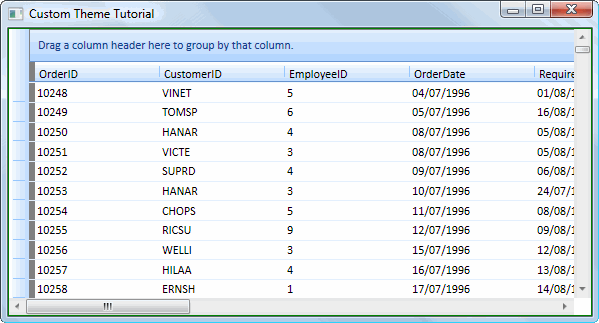
The scroll bars that are displayed follow the system settings; therefore, your result may vary.